
A laptop is the only piece of infrastructure you own that leaves the building every day, carries your data and your logged-in sessions, and gets chosen on price. It is worth specifying like infrastructure rather than buying like a consumable.
The good news is that most of the decision is made for you once you answer one question: who is going to use it?
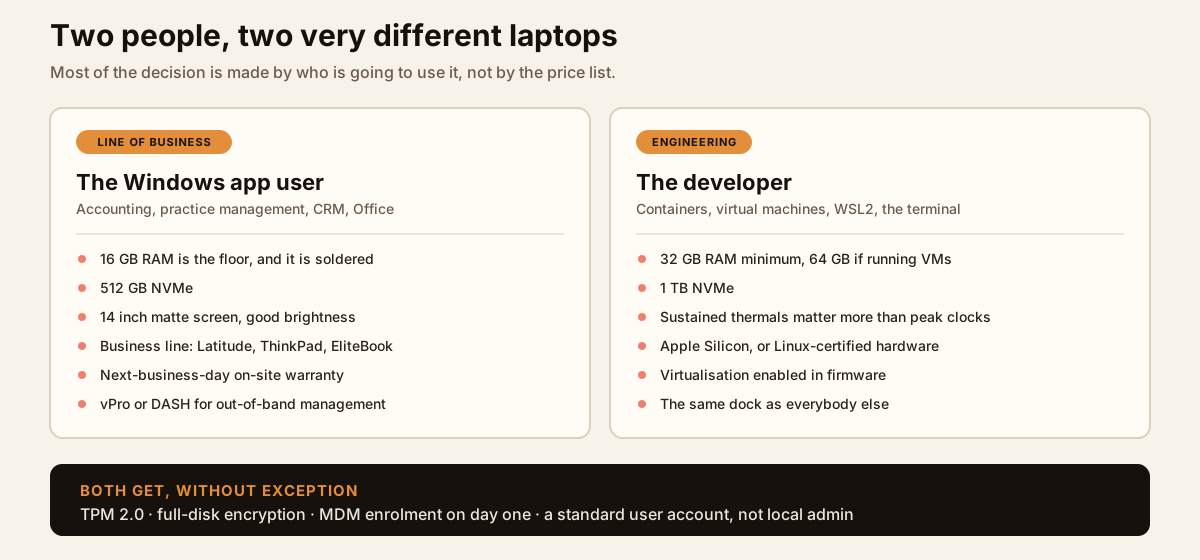
The Windows line-of-business user
This is most of your staff: accounting software, practice management, a CRM, Office, a browser with thirty tabs. They do not need a powerful machine. They need a dependable one, and those are not the same purchase.
Buy from the business line rather than the consumer line — Dell Latitude, Lenovo ThinkPad, HP EliteBook. The price difference buys things that matter to whoever supports the fleet:
- Longer availability of the same model, so you can buy an identical machine in eight months and keep one image.
- Spare parts and on-site warranty. Next-business-day on-site for anyone whose downtime costs real money.
- Out-of-band management — Intel vPro or DASH — so a machine can be reached when the operating system will not boot.
- Firmware you can manage centrally, including BIOS passwords and settings, rather than touching each device by hand.
- TPM 2.0 as standard, which everything in the security section below depends on.
On specification: 16 GB of RAM is the floor, and because it is usually soldered you cannot fix that decision later. 512 GB NVMe. A 14 inch matte screen with decent brightness, because a surprising amount of work happens in bright rooms and on trains. Do not pay for a discrete GPU nobody will use.
The developer or engineer
Different machine, different reasoning. Command-line work, containers, virtual machines and local builds are bound by memory and sustained thermal performance, not by the headline clock speed on the spec sheet.
- 32 GB of RAM is the realistic minimum, and 64 GB if they run virtual machines alongside containers. This is the single spec that causes the most daily frustration when it is wrong.
- 1 TB NVMe. Container images and build caches consume space at a rate that surprises people.
- Sustained performance over peak. A thin machine that throttles after ninety seconds is slower in practice than a slightly thicker one that does not.
- Platform follows the work. Apple Silicon is excellent for terminal-centric development and battery life. If they need native Linux, buy hardware the vendor actually certifies for it rather than hoping. If it is Windows with WSL2, enable virtualisation in firmware and understand that the security features which rely on it carry a performance cost.
One organisational note: mixing platforms costs you in management rather than in licensing. If your estate is Windows and managed through Intune, a single MacBook is not a purchase, it is a second support model. That can be entirely worth it — but somebody should own the decision rather than discovering it later.
The things both of them need
- Standardise the dock. One dock model across the fleet saves more support time than any other single procurement decision.
- USB-C Power Delivery charging, so chargers are interchangeable and a lost one is a five-pound problem rather than a vendor part number.
- A decent webcam, microphone and keyboard. People use these for hours a day; it is a strange place to economise.
- One standard configuration per procurement cycle, so you maintain one image and one driver set instead of eleven.
The security baseline
This part does not change with the size of the business. It changes only in how much evidence you have to produce for it.
- Full-disk encryption, on from day one. BitLocker, FileVault or LUKS, with recovery keys escrowed into Entra ID, Active Directory or your MDM — not in a spreadsheet. Worth understanding precisely what this protects you from, which is narrower than most people assume: we covered that in Data Safeguards: From Storage to Transit.
- MDM enrolment before the machine is handed over. Intune, Jamf or equivalent. An unenrolled laptop cannot be wiped, and that single fact decides how bad a theft turns out to be.
- Standard user accounts. Not local administrator, including for the developers — give them a separate elevation path instead.
- Strong, unique passwords from a manager, rather than a variation of the same one everywhere. The practical options, free and paid, are in Password managers: free is fine, until the auditor arrives.
- Phishing-resistant MFA — passkeys or hardware keys rather than push prompts, for the reasons set out in The Phishing Trap.
- Secure Boot and TPM 2.0 enabled, with a firmware password set so the boot order cannot simply be changed.
Patching is part of the specification
Laptops are the hardest part of an estate to keep current, because they are only on the network when somebody opens the lid. That argues for cloud-managed patching with agents that work off the corporate network, and for measuring how long a device goes unpatched rather than how many patches you pushed.
It also matters more than it used to. The window between a vulnerability becoming public and being exploited has collapsed, and third-party applications on endpoints — browsers, PDF readers, runtimes — are where the gap usually sits. We went through the reasoning and the cadence in Vulnerability Remediation: From Low Findings to Full Compromise.
Beat the Thieves: How to Prevent Theft and Recover Faster
Laptops are stolen from cars, coffee shops, hotel rooms, conference floors and offices, usually opportunistically and usually for the hardware. The hardware is the cheap part of the loss.

Physical measures
- Check there is a lock slot before you buy. Many thin models have dropped the full-size Kensington slot in favour of a smaller wedge-shaped one, which needs a different cable. Discovering that after delivery is annoying.
- Asset tags and engraving. They reduce resale value, help recovery, and make an insurance claim straightforward.
- Keep an asset register with serial numbers and service tags. You cannot report, claim for, or remotely wipe a device you cannot precisely identify.
- Short screen-lock timeouts, and the habit of locking on standing up. An unlocked laptop is a logged-in session, not a laptop.
- Never in a car, and never visible in one. This is the single most common loss we see.
What actually limits the damage
Device tracking — Find My, Windows Find My Device, MDM location — is worth enabling, but be realistic: it stops being useful the moment the machine is wiped or kept offline, which is what anyone reselling it does first.
The controls that genuinely decide the outcome are encryption, remote wipe, and revoking the sessions. In this order, the moment a loss is reported:
- Revoke the user’s active sessions and tokens, then reset the password. A reset on its own leaves a signed-in browser working.
- Issue the remote wipe from your MDM, so it executes whenever the device next sees a network.
- Confirm the disk was encrypted and that the recovery key is in your escrow, because that is what turns a breach into a hardware loss.
- Report it — police reference for the insurance claim, and your own incident record.
- Test the wipe works before you need it. A remote wipe nobody has ever run is a hope, not a control.
The laptop is an invoice. The data on it, and the sessions still signed in on it, are the incident. Specify for the second one.
Regulated environments: what changes
If you handle health records, cardholder data, controlled unclassified information or client files under a professional obligation, the baseline above does not get longer — it gets documented. The difference is that you must be able to demonstrate each control rather than simply have it.
- An accurate asset register is usually the first thing an assessor asks for, and often the first thing that fails.
- Encryption attestation — a report from your MDM showing which devices are encrypted, not an assurance that they are.
- FIPS-validated cryptography where it is contractual, which means the validated module and the FIPS mode switched on, not just a product that mentions AES.
- Secured-core and firmware protection. On Windows, secured-core PCs add firmware-level defences that matter when the threat model includes a device leaving your control.
- Privacy screens and camera shutters for staff who work in public, which sounds trivial until somebody photographs a client list on a train.
- Buy through authorised channels. Grey-market hardware undermines any supply-chain assurance you are claiming.
- Disposal with evidence. A certificate of destruction or verified sanitisation — not “we reformatted it”. If you lease, confirm in writing who sanitises the drive and what proof you receive.
For staff travelling to higher-risk destinations, a separate loaner with minimal data on it is cheaper than the alternative, and avoids the question of what happens when a device is inspected at a border.
A short buying checklist
- Decide the user profile first, then the specification.
- Business line, TPM 2.0, one standard configuration per cycle.
- 16 GB for office work, 32 GB or more for engineering, and remember it is soldered.
- One dock model. USB-C charging throughout.
- Warranty matched to what downtime actually costs that person.
- Encryption, MDM enrolment and a standard user account before handover — not afterwards.
- Serial number in the asset register on the day it arrives.
- A disposal route agreed before the first machine reaches end of life.
Get the profile right and you buy a machine somebody is glad to use for four years. Get the baseline right and the day one of them is stolen becomes a purchase order rather than a disclosure.